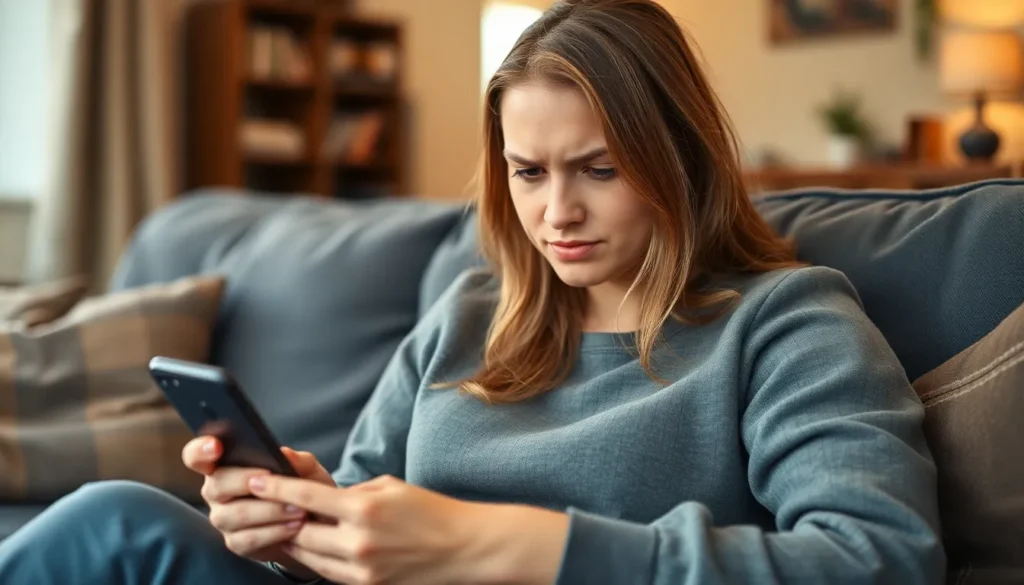
Dealing with unwanted texts can feel like an endless game of Whack-a-Mole. Just when you think you’ve silenced one annoying texter, another pops up to ruin your day. Luckily, if you’re an iPhone user, blocking those pesky messages is easier than finding a cat video on the internet.
Understanding Text Blocking on iPhone
Blocking unwanted text messages on an iPhone simplifies communication and enhances user experience. This feature allows individuals to filter out annoying or harmful messages efficiently.
Importance of Blocking Unwanted Texts
Blocking unwanted texts prevents distractions and protects privacy. It reduces the risk of receiving spam messages that often clutter inboxes. Users experience less stress when they eliminate text from unwanted sources. Enhanced focus on important communications becomes possible when individuals remove bothersome interactions. Blocking also safeguards against potential phishing attempts disguised as legitimate messages.
When to Consider Blocking a Texter
Consider blocking a texter when conversations become intrusive or uncomfortable. Persistent messaging from the same contact warrants immediate action. If content includes harassment or threats, swift blocking serves as a vital protection method. Ignoring unwanted messages may lead to escalating situations, making blocking necessary. Strong indicators for action include repeated unsolicited offers or inappropriate comments. Taking control of one’s messaging space maintains a safer and more pleasant communication environment.
Steps to Block a Texter on iPhone

Blocking unwanted texters on an iPhone involves a few simple steps that enhance the messaging experience. Each method provides an effective way to ensure privacy and reduce interruptions.
Using the Messages App
Open the Messages app to initiate blocking from a specific conversation. Locate the conversation with the unwanted texter and tap on it. Once inside, tap on the contact’s name or number at the top of the conversation. Next, select the “info” option. Scroll down and choose “Block this Caller.” Confirm the action, and the sender will no longer reach your inbox.
Through Contacts App
Accessing the Contacts app allows for another straightforward method to block a texter. Find and select the contact you wish to block. Once on the contact’s details page, scroll down to find the option to “Block this Caller.” Tapping it will end all communication from that number. This method effectively prevents future messages or calls from the unwanted sender.
Utilizing Settings
Settings offer yet another way to block a texter regardless of previous interactions. Open the Settings app on the iPhone and navigate to “Messages.” Inside, scroll to the “Blocked Contacts” section. From there, tap “Add New” and select the contact or enter the number to block. This comprehensive approach stops any communication from the specified number across all messaging platforms.
Managing Blocked Contacts
Managing blocked contacts on an iPhone is essential for a cleaner messaging experience. Users gain control over their communication, making it easier to stay focused and free from unwanted messages.
How to Unblock a Texter
Unblocking a texter is a straightforward process. Open the Settings app, scroll down to Messages, and tap on Blocked Contacts. This displays a list of all blocked numbers. Select “Edit” in the top right corner, then tap the red minus icon next to the number you want to unblock. Confirm by selecting “Unblock.” Alternatively, accessing the conversation in the Messages app allows unblocking directly by tapping on the contact’s name and choosing “Unblock this Caller.” The changes take effect immediately, allowing resumed communication.
Reviewing Blocked Contacts List
Reviewing the blocked contacts list helps keep track of unwanted texters. Access this list through the Settings app by navigating to Messages and selecting Blocked Contacts. From this location, users can view all blocked numbers effortlessly. Each entry displays the contact name when available. Users maintain the ability to quickly unblock individuals if needed. Regularly reviewing this list ensures more effective management of unwanted communication while empowering users to adjust their settings as necessary.
Troubleshooting Common Issues
Blocking a texter can occasionally lead to unexpected issues. Understanding these problems can help maintain smooth communication.
Not Receiving Messages After Blocking
Blocking a contact may create confusion about receiving messages. Users may notice missed notifications after blocking a texter. It’s essential to ensure that the block was successfully executed. If messages continue to come through, checking the blocked list in the Settings app can clarify the status. Restarting the device may also refresh notifications. Reviewing the block status periodically helps confirm the settings remain as intended.
Issues with Unblocking a Texter
Unblocking a texter sometimes presents challenges. Users might encounter difficulties finding the contact in the blocked list. Confirming the unblocking process is complete requires careful navigation through the Settings app. In some cases, unblocked contacts might still appear in the message list, leading to confusion. Ensuring the number is removed from the blocked list resolves this issue. If problems persist, restarting the device can eliminate temporary glitches. Regularly updating software also promotes a seamless experience when managing contacts.
Blocking unwanted texters on an iPhone is a simple yet effective way to enhance one’s messaging experience. By taking control of communication preferences users can create a more pleasant and secure environment. Regularly reviewing blocked contacts ensures that distractions are minimized and privacy is maintained.
Troubleshooting any issues that arise after blocking ensures a seamless experience. With these strategies in place users can enjoy a cleaner inbox and focus on meaningful conversations without the interference of unwanted messages.